The to-do list linked to Google Calendar
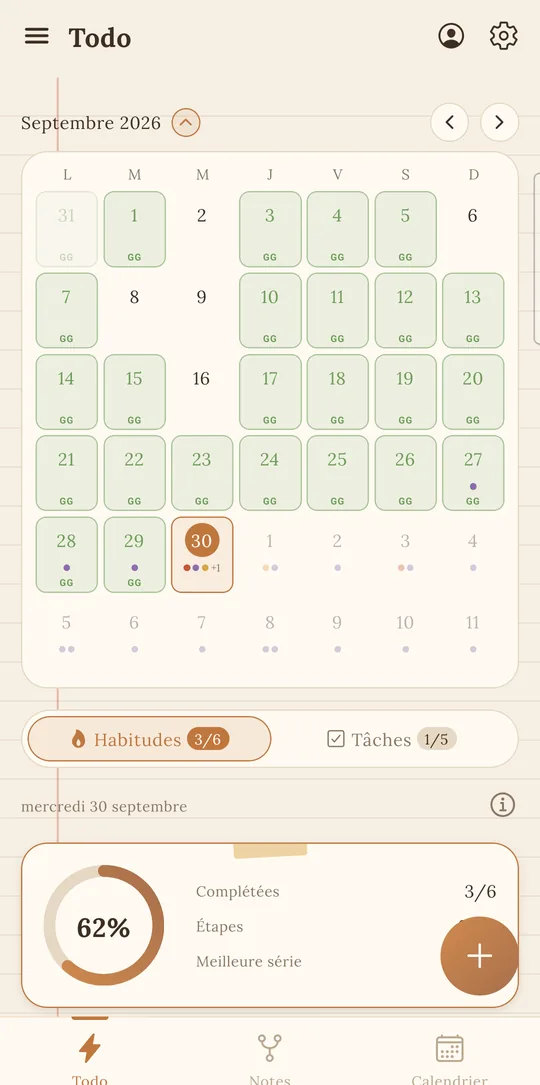
Your appointments are in Google Calendar, your tasks in another app and your habits in a third? Lumina is a to-do list linked to Google Calendar: your Google events and dated tasks show up in the same calendar, so you see your real day at a glance.
How to connect Google Calendar to Lumina
You connect once and for all, on Android as in the web app:
- Sign in with your Google account in Lumina.
- Allow access to Google Calendar when the app asks.
- Open the calendar: your events appear, among your dated tasks.
It’s included in the free version: viewing, creating, editing and deleting events costs nothing.
Five views to read your calendar
Depending on your day, you don’t need the same level of detail. Lumina offers five views:
- Day to follow your day hour by hour.
- 3 days to see what’s coming without getting swamped.
- Week to fit your tasks between appointments.
- Month to spot exams, matches or deadlines.
- Schedule for a simple list of everything coming up.
Create and edit your events without leaving Lumina
An appointment to add, a meeting moved? You create, edit or delete the event right in Lumina, and the change goes to Google Calendar: you see it everywhere you use your Google calendar.
For a recurring event, Lumina only changes the occurrence you picked. And if you need the full details, the event opens in Google Calendar in one tap.
Tasks, habits and events: what goes where?
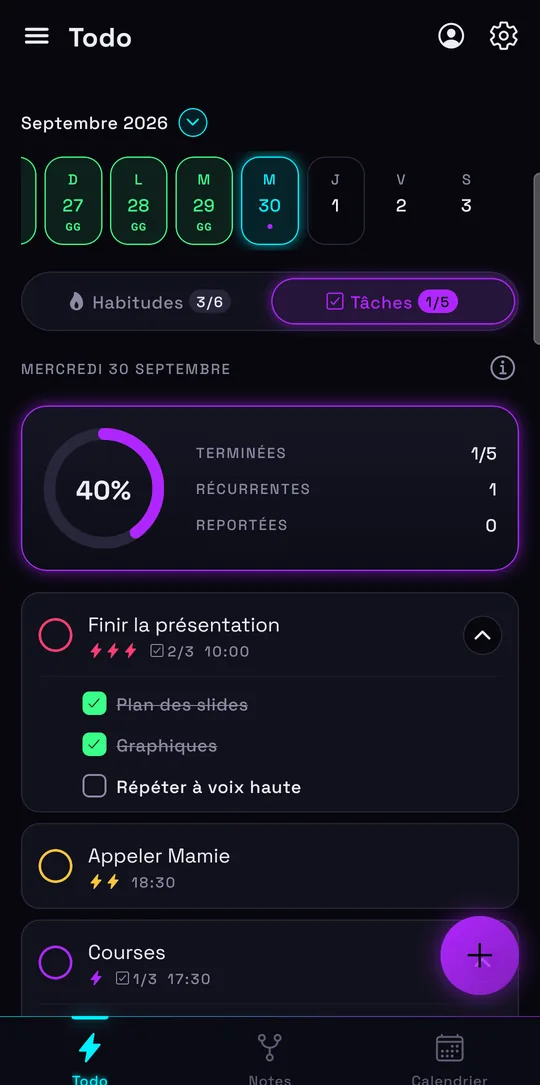
To be clear: your events stay in Google Calendar, and your tasks and habits live in Lumina. Tasks are not copied to your Google calendar. In Lumina’s calendar, though, your dated tasks show up among your events: in the grid if they have a time, at the top of the day if not, and you can drag them to move them. That way you get what Google Calendar doesn’t do:
- Tasks with time, priority, subtasks and recurrence.
- Unfinished tasks automatically moved to the next day.
- Habits with streaks, daily goals and reminders.
Tasks and events show up together, so you can plan your to-do list around your appointments. For school, see also the student planner; for a team, the shared to-do list; and for your routines, the habit tracker. Coming from another to-do list? Our comparison with Todoist says what changes. Using Google Tasks? Lumina imports the Tasks.json file from Google Takeout, without duplicates.
Free with your calendar, Pro for all your calendars
The free version shows and edits your Google Calendar. The Pro plan (€39.99 a year or €4.99 a month, no commitment) adds all your Google calendars: shared, work, family…
On the privacy side, Lumina only keeps an encrypted access token to show and edit your events: events are not stored on our servers. If you delete your account, access is also revoked with Google.
Frequently asked questions
Does Lumina sync my tasks with Google Calendar?
Lumina shows your Google Calendar events and dated tasks in the same calendar, and lets you create, edit and delete your events. Your tasks and habits stay in Lumina: they are not copied to Google Calendar.
Is Google Calendar included in the free version?
Yes. Viewing, creating, editing and deleting events is free. The Pro plan adds all your other Google calendars (shared, work, family).
Do I need a Google account?
Yes, to show Google Calendar you need to sign in with Google and allow access to your calendar. The rest of the app also works without an account.
Does Lumina store my events?
No. Lumina only keeps an encrypted access token to read and edit your calendar; events are not stored on the server.
Which calendar views are available?
Day, 3 days, Week, Month and Schedule.
Other ways to get organized
Track your habits
Streaks, daily goals, reminders and widgets: a free habit tracker that keeps you going.
Organize your studies
Homework, studying and classes in a student planner linked to Google Calendar.
Share a to-do list
A group task list for your class, your team, your club or your family.
Discover Lumina
Every feature, the 9 themes and the app’s pricing.
Ready to try it? It’s free.
No ads, no account required, on Android and in your browser.